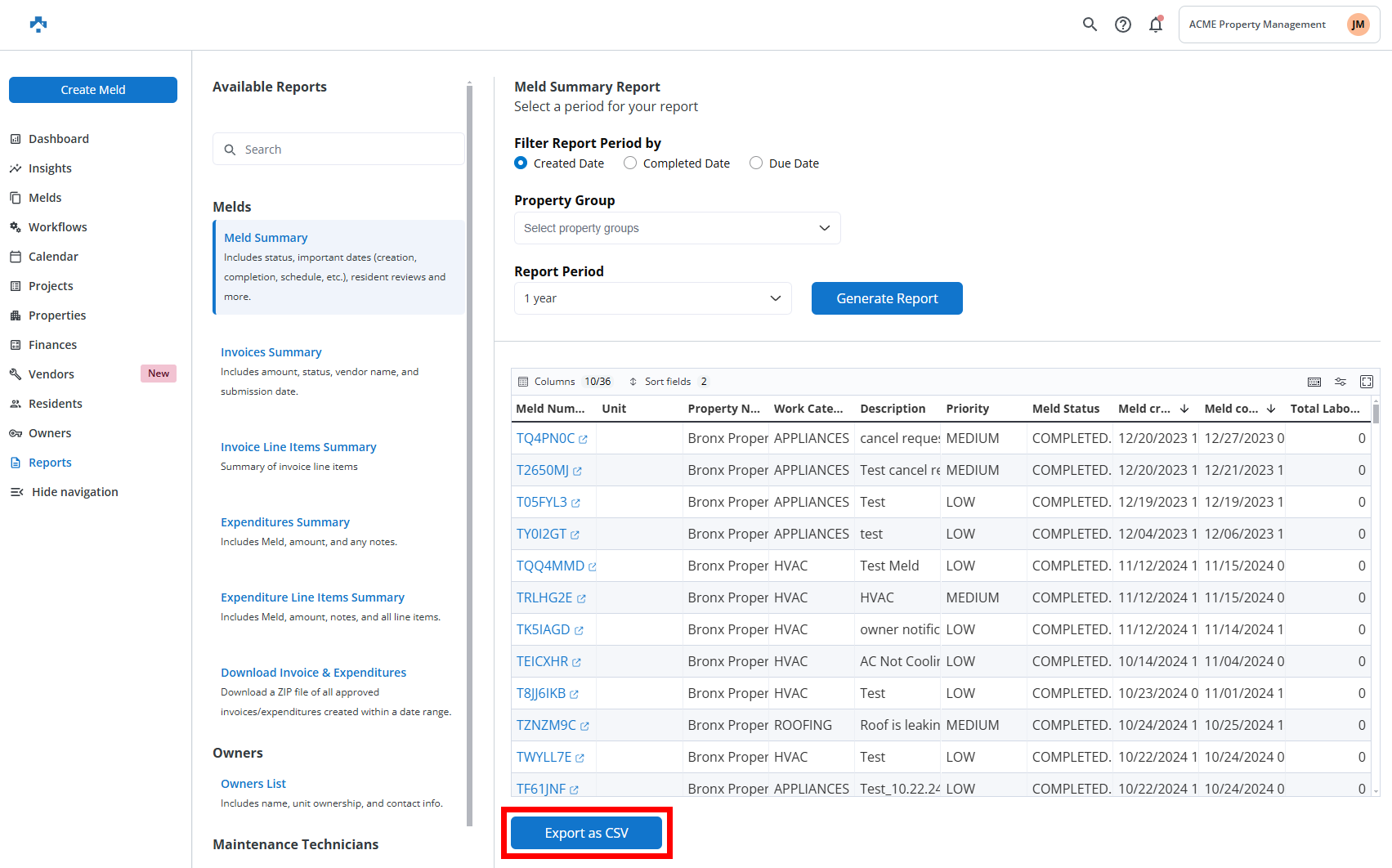
The Reports section in Property Meld allows you to access a variety of summaries and detailed insights related to maintenance, invoices, technicians, residents, and more. Here’s a breakdown of the reports you can generate:
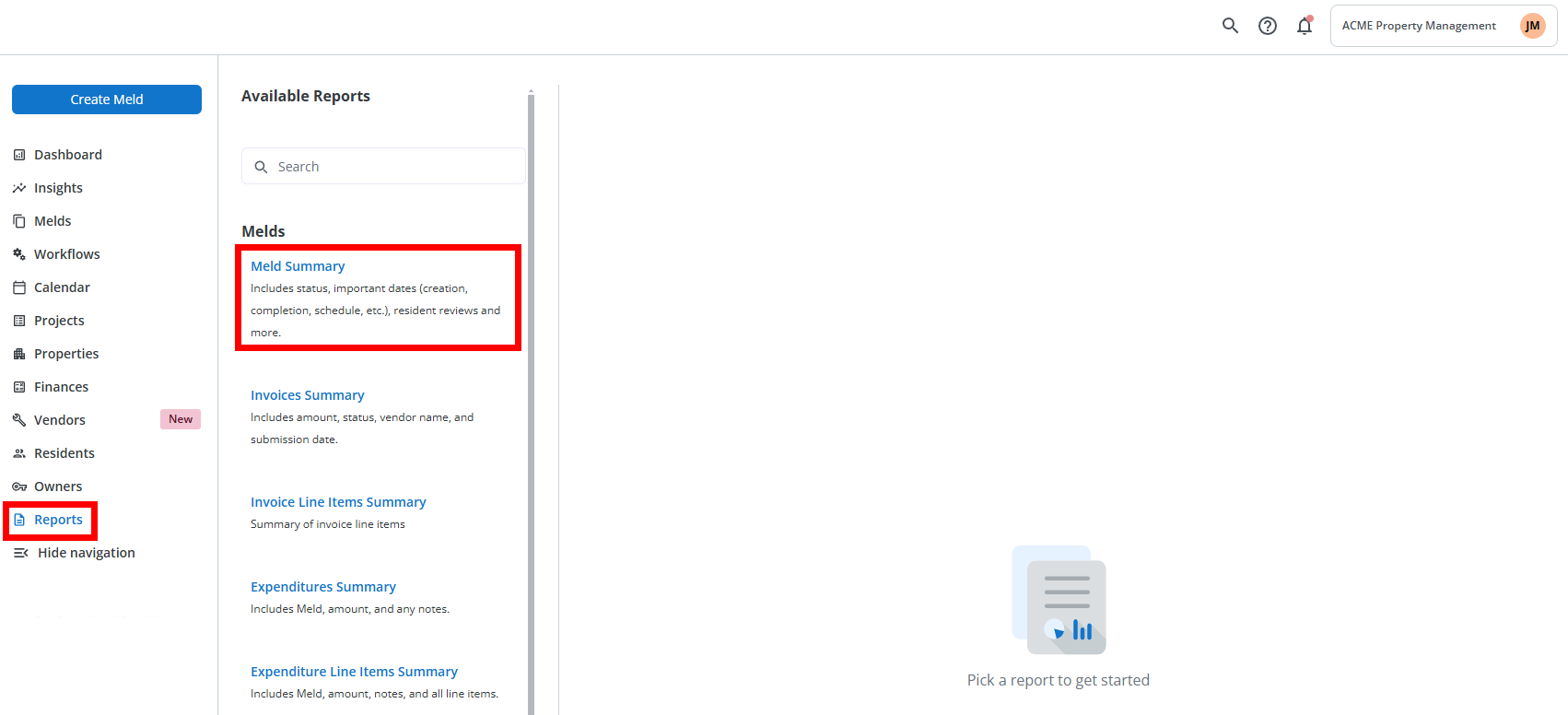
Available Reports Overview
Melds
- Meld Summary: View the status, important dates (e.g., creation, completion, schedule), resident reviews, and other key details.
- Invoices Summary: Includes amounts, statuses, vendor names, and submission dates.
- Invoice Line Items Summary: Provides a summary of individual invoice items.
- Expenditures Summary: Displays meld-related expenditures, amounts, and notes.
- Expenditure Line Items Summary: Offers a detailed breakdown of expenditures, including notes and line items.
- Download Invoice & Expenditures: Download a ZIP file of all approved invoices and expenditures within a specified date range.
Owners
- Owners List: Provides owner names, unit ownership details, and contact information.
Maintenance Technicians
- Labor Summary Report: Includes technician names, hours logged, total melds completed, and a breakdown by category.
- Work Log Summary: Tracks check-in/check-out dates, user notes, and technician names.
Residents
- Residents List: Contains names, registration statuses, unit occupancy, and contact details.
Units
- Units List: Lists addresses, ownership details, and property group associations.
Generating Your Report
Click Reports on the left-side, and then choose the report you would like to generate.
Once you’ve selected the type of report you want, you can customize it further using the filters and options available:
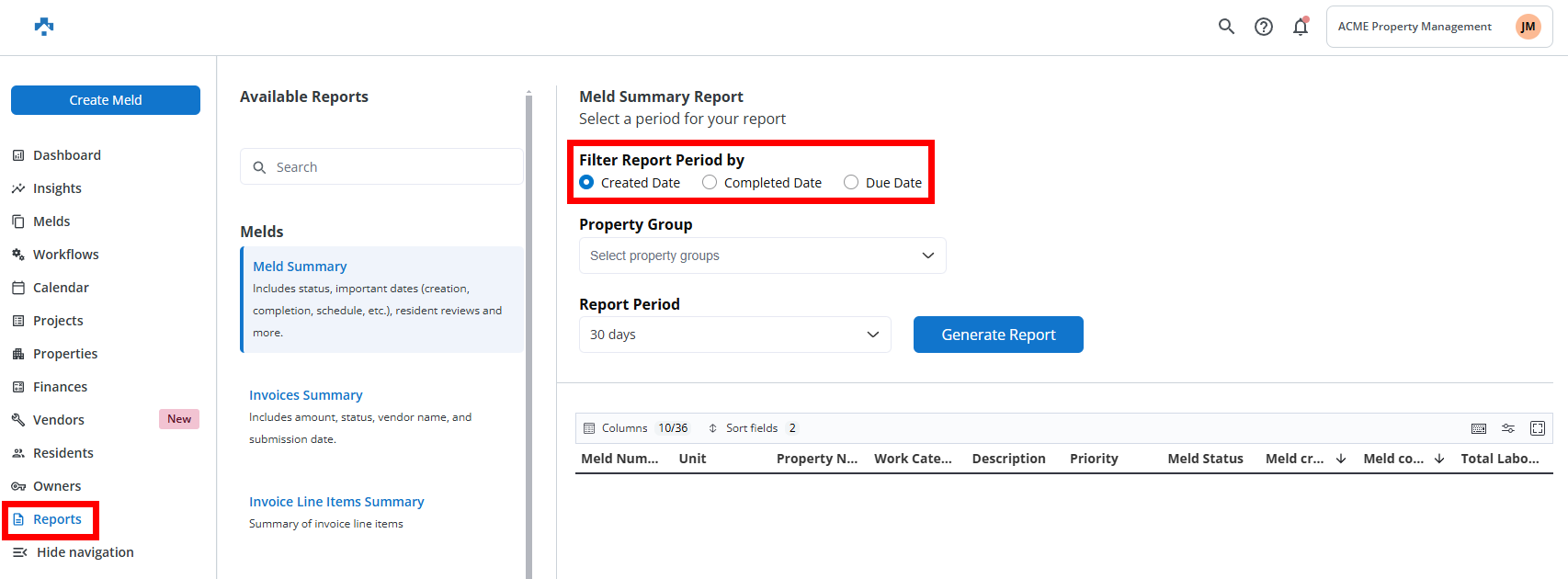
Step 1: Filtering Options
-
Filter Report Period By:
- Created Date
- Completed Date
- Due Date
-
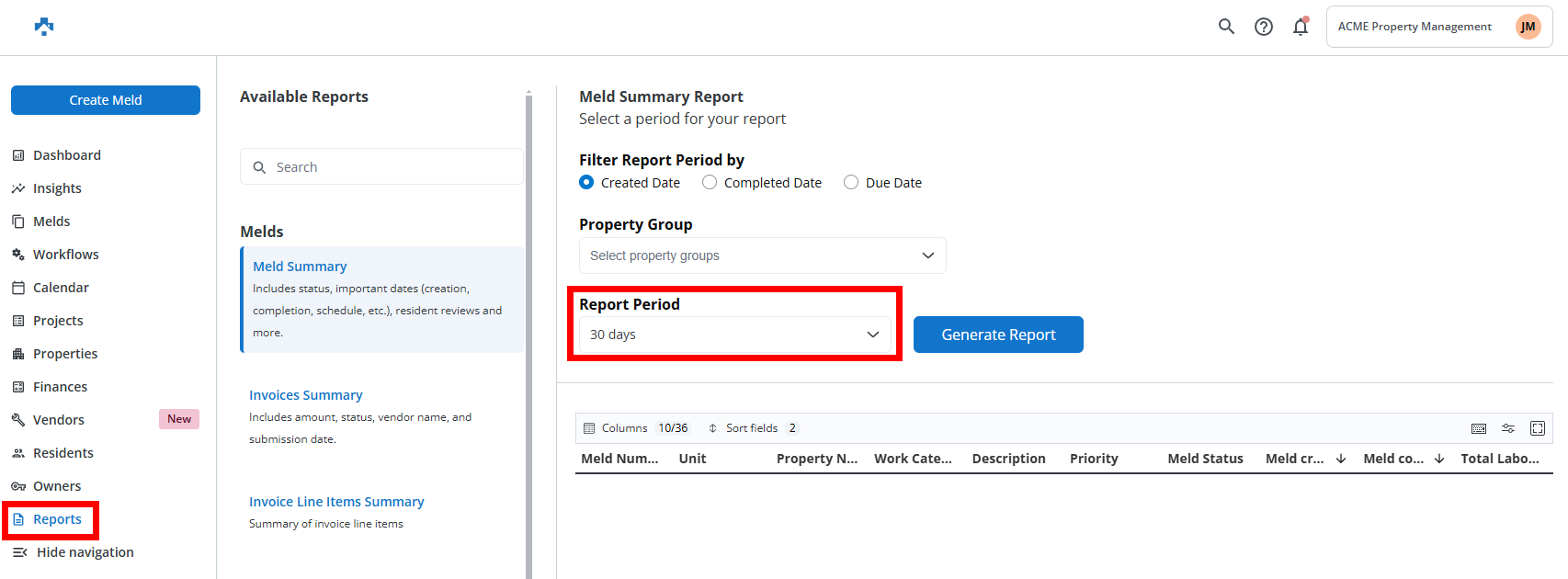
Report Period Options:
- 30 days
- 90 days
- 180 days
- 1 year
- Custom (select a specific date range)
Step 2: Generating Your Report
- After setting your filters, click Generate Report to display the report data on your screen.
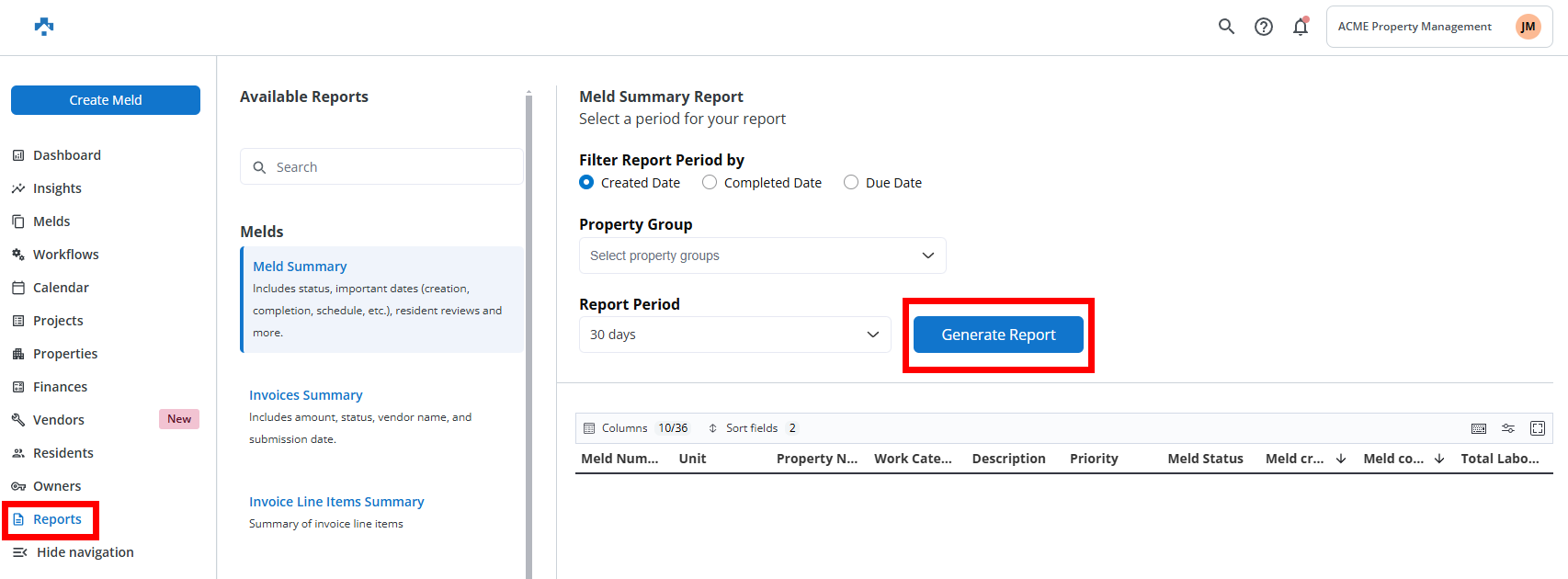
Customizing the On-Screen Report
Once your report is generated, you can adjust its layout and data display:
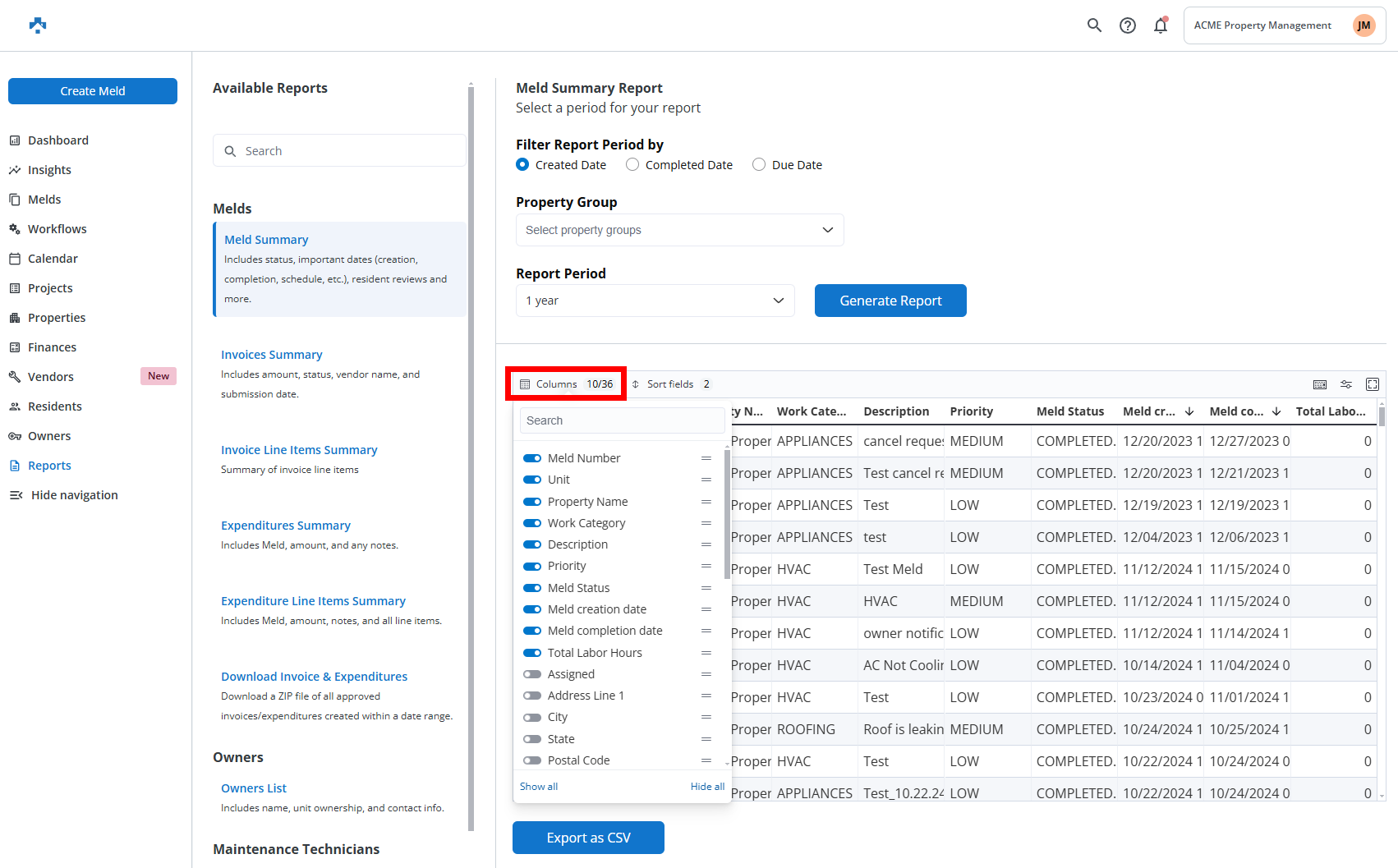
- Add, Remove, or Reorder Columns: Tailor the columns to show exactly what you need.
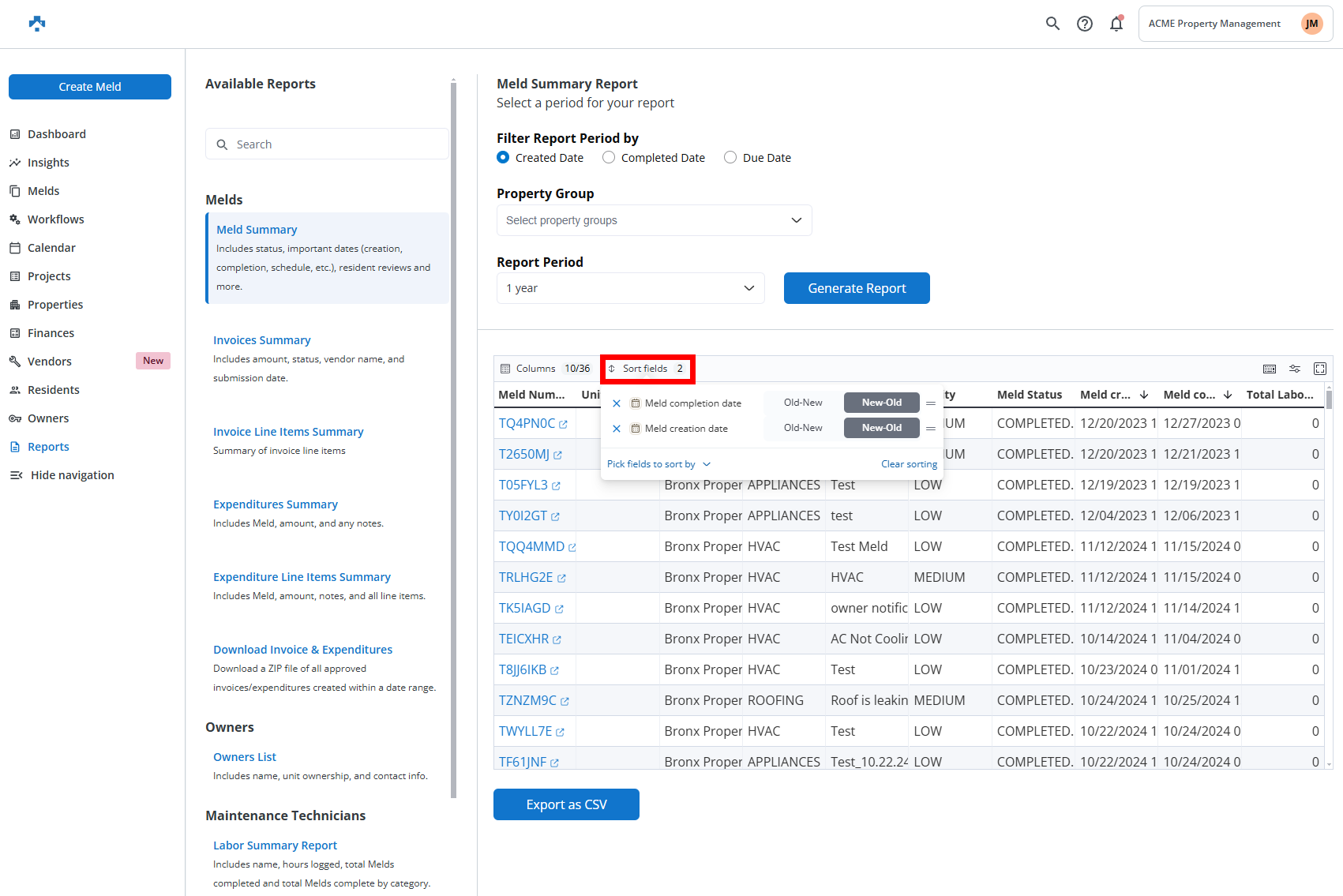
- Sort Fields: Sort data from Old to New or New to Old for easier analysis.
- Adjust Density & Row Height: Choose the level of detail displayed in your report
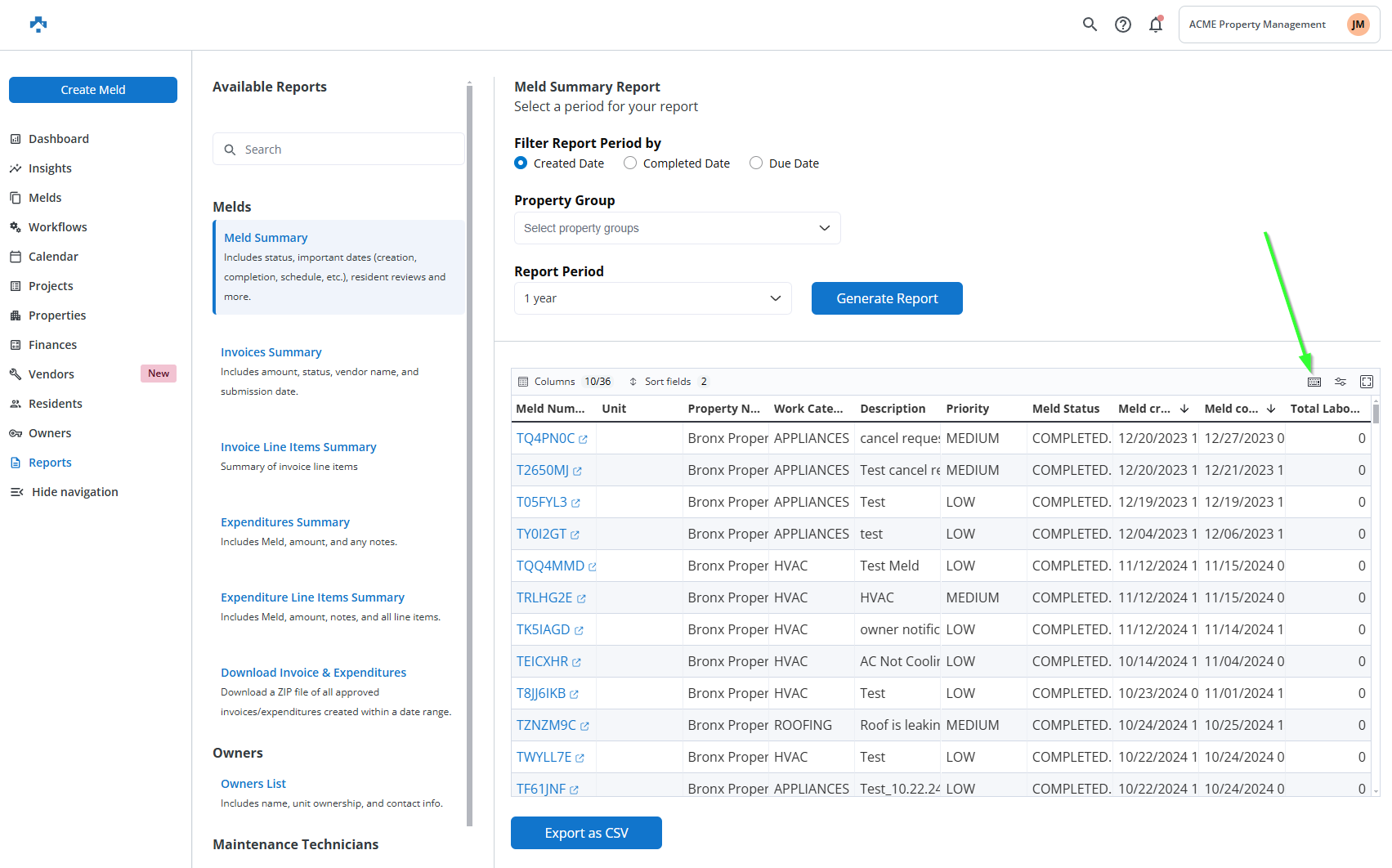
- Keyboard Shortcuts: Quickly move your cursor through the report table for efficient navigation.
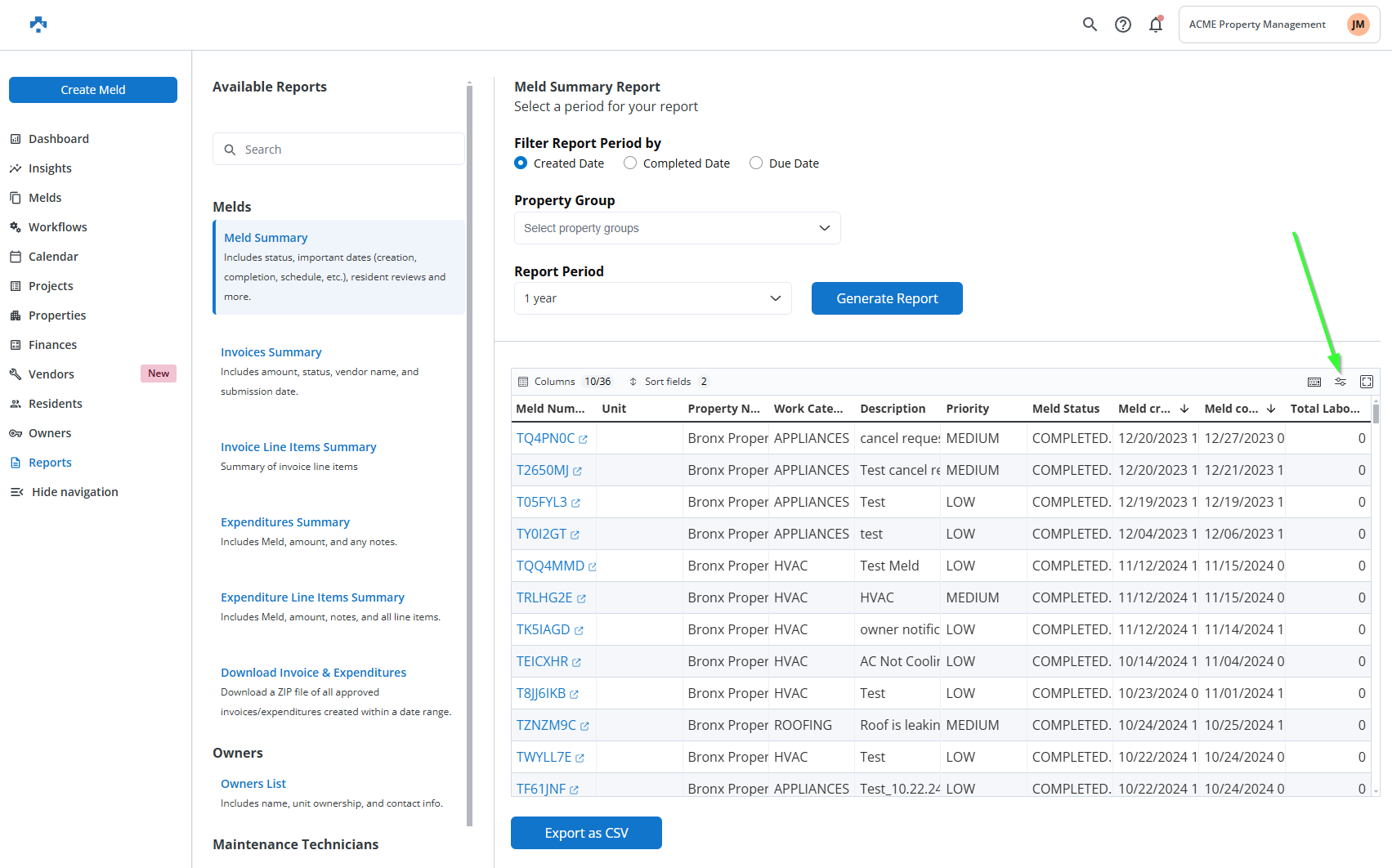
- Enter Fullscreen: Expand the report to fullscreen mode for better visibility.
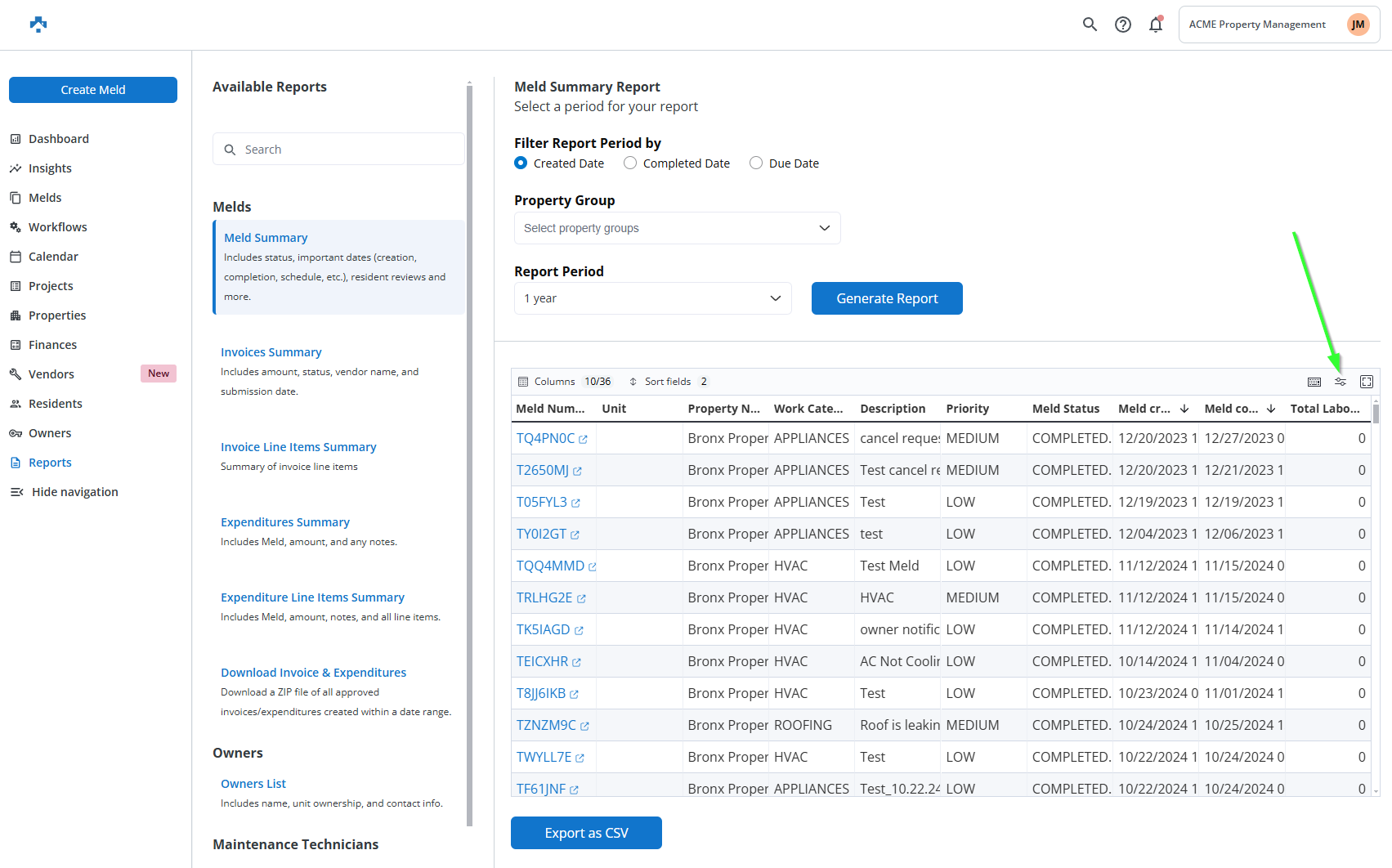
Step 3: Exporting Your Report
- Once you're happy with your report, click Export as CSV to download it to your email for easy access and sharing.