Requesting an estimate is a key step in keeping repair costs transparent and getting owner approval faster. Whether you're working with a vendor or assigning the job to an internal technician, sending a request directly through the Meld helps ensure nothing gets lost in translation. This guide walks you through how to request an estimate quickly and efficiently.
New Enhancements
We’ve recently improved the Estimates feature to make file sharing more flexible and transparent:
-
If a file is added to a Meld after an estimate is requested/submitted, agents can now share that file on the estimate so the vendor can view it.
-
When requesting an estimate, agents can now share Meld files directly with vendors.
-
The Files section now displays vendor-uploaded files even before the estimate is submitted (while it’s still in progress).
To see what these enhancements look like in the Meld platform, click the following:
Skip to Enhancements
Requesting An Estimate
Step 1:
From the open Meld, click the Estimates tab.
Step 2:
Click the Request Estimates tab.
Step 3:
Select Vendor(s), Due Date, enter Notes, and click Send Request.
NOTE: Comments are for internal use ONLY—they will not be visible to the vendor.
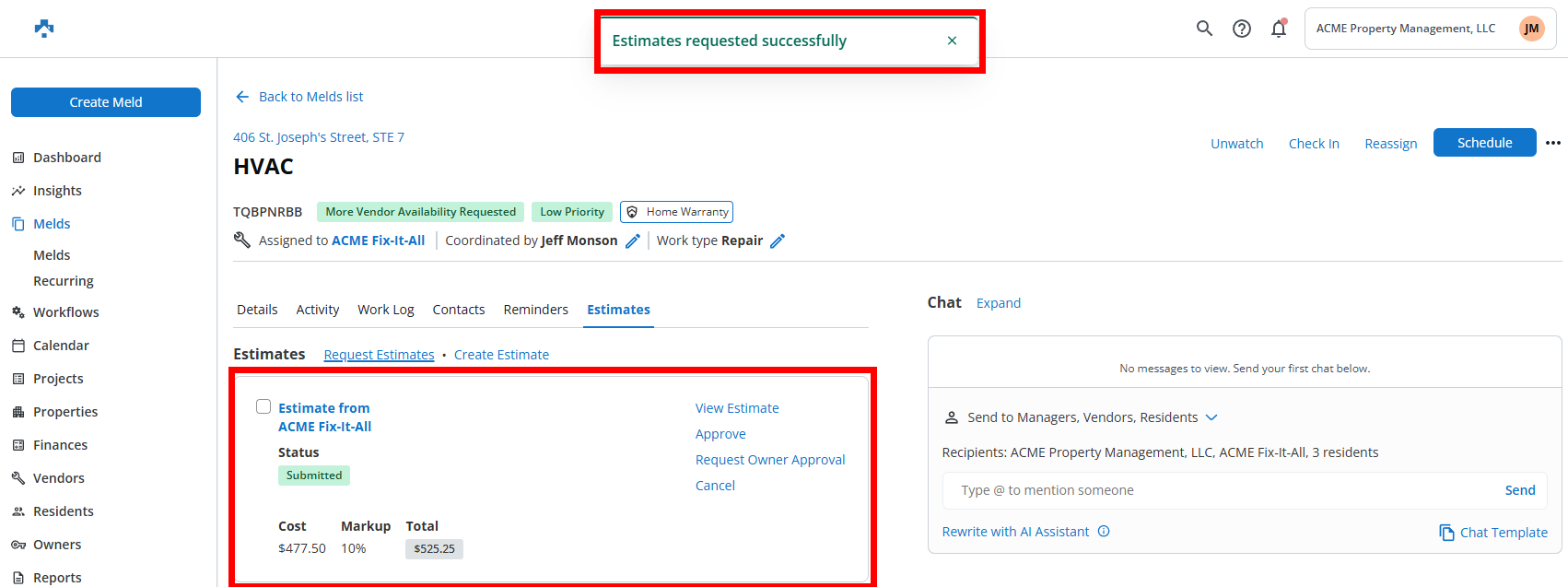
Your Estimate has been requested!
New Enhancements in Action
- If a file is added to a Meld after an estimate is requested/submitted, agents can now share that file on the estimate so the vendor can view it.
- When requesting an estimate, agents can now share Meld files directly with vendors.
- The Files section now displays vendor-uploaded files even before they submit the vendor submits the estimate (while it’s still in progress).