Unlock the power of seamless integration with Yardi. Our latest enhancement gives Property Managers greater control over financial workflows by enabling the creation of multiple General Ledger (GL) rules based on custom criteria. These rules act as the framework for how invoices sync with Yardi, offering detailed precision in billing logic. By tailoring conditions to fit your operational needs, you can ensure financial data flows cleanly into Yardi—streamlining accounting processes and minimizing errors with confidence.
Step 1:
Click Company Name, and then click Integrations & Partners.
Step 2:
Click Yardi card to open.
Step 3:
Click GL Rules.
Step 4:
Click Create Rule.
NOTE: These are the rules that will set GL accounts for exported items to Yardi.
*If the 'Default GL Account' is set under the Yardi Vendor profile than we will not override this account with our rules.
Step 5:
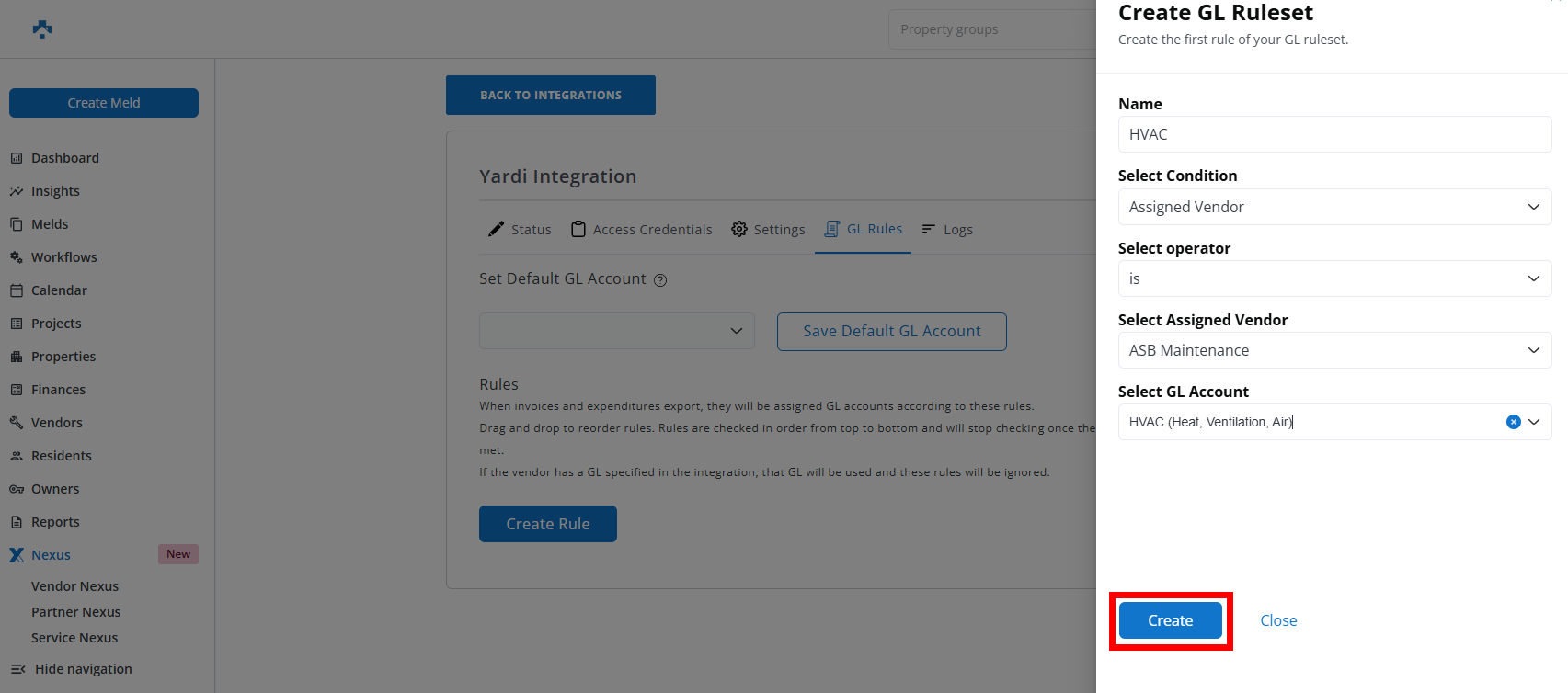
Name your GL Rule.
Step 6:
Select your Condition.
NOTE: Other available conditions are Line Item Type and Meld Work Category. For this article, Assigned Vendor was selected.
Step 7:
Select your Operator, your Assigned Vendor, and the applicable GL Account
Step 8:
After setting your GL Rule criteria, click Create.
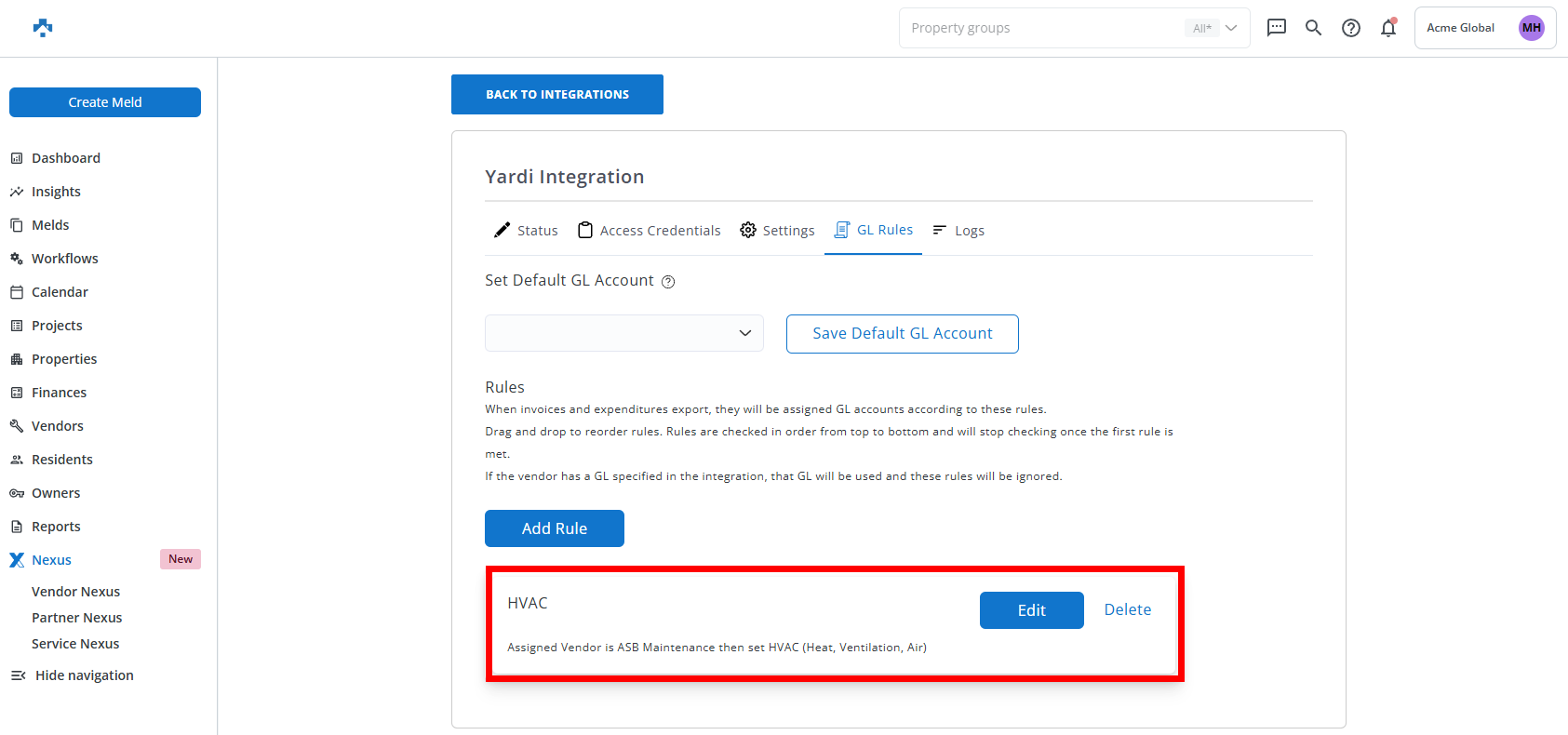
You will now see the rule you created.
Note: As you add more rules, you can drag and drop to reorder. Rules are checked in order from top to bottom and will stop checking once the first rule is met.
Note: As you add more rules, you can drag and drop to reorder. Rules are checked in order from top to bottom and will stop checking once the first rule is met.
0
0
Was this article helpful?
0 out of 0 found this helpful